> For the complete documentation index, see [llms.txt](https://memberarea.docs.intersectmbo.org/llms.txt). Markdown versions of documentation pages are available by appending `.md` to page URLs; this page is available as [Markdown](https://memberarea.docs.intersectmbo.org/guides/identity-verification/standar-verification-sumsub.md).
# Standar verification - SumSub
{% hint style="info" %}
**Tip:** Have your phone and ID ready before starting the process to make it quicker.
{% endhint %}
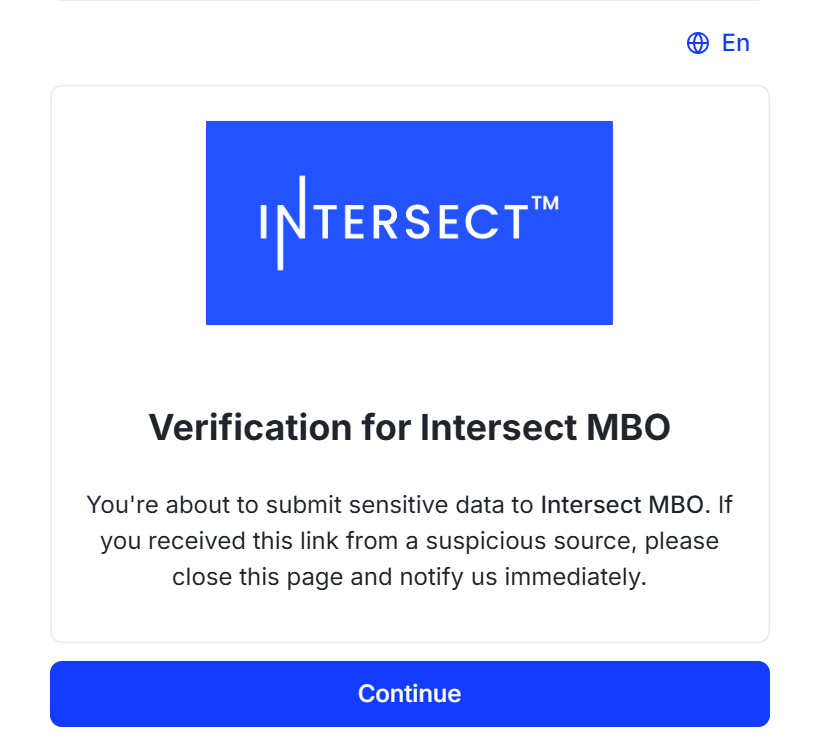
## Step 3: Start Verification
* You’ll be redirected and see the following message—just click Continue to proceed.
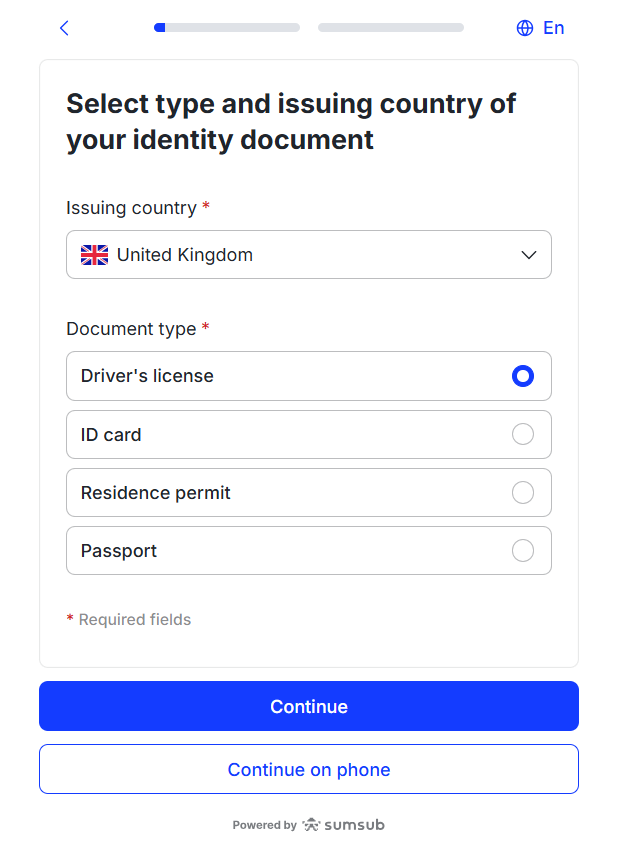
## Step 4: Provide required Information
* Upload a government-issued ID (passport, national ID card, or driver’s license).
* Take a selfie requested by SumSub.
* Make sure your document is valid, clearly visible, and not expired
* Follow the prompts.
## Step 5: Confirmation
* SumSub will process your verification.
* Once approved, you’ll see a confirmation notification on your Intersect account dashboard.